Audit Definition Editor
Audit Definition Editor · Find And Batch Editor
Find And Batch Editor
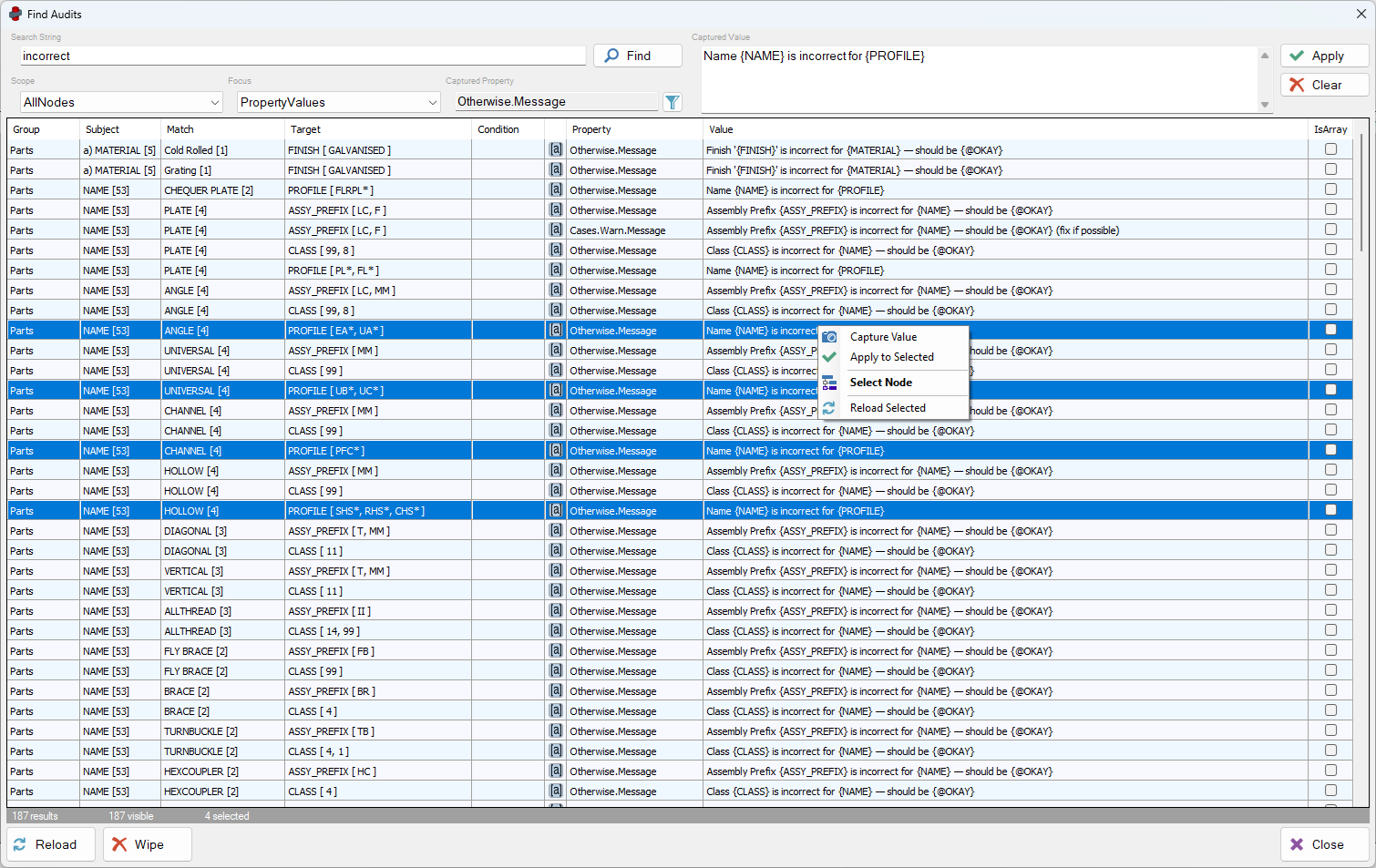
The Audit Find And Batch Editor is a tool for locating, inspecting, and modifying audit definition values across multiple nodes in a structured and controlled way.
It combines:
- Search (find specific properties across the audit tree)
- Inspection (view values in context)
- Find (locate the node in the tree)
- Batch Editing (apply changes across multiple nodes safely)
Overview
The Audit Find window acts as a cross-node property inspector.
Instead of navigating the audit tree manually, it allows you to:
- search for any property or value across all audit nodes
- view results in a flat, sortable table
- capture a value from one node
- apply that value to multiple nodes
Conceptually, it behaves like:
Find + Property Grid + Batch Editor for audit definitions
Searching
You can search audit definitions using:
- property names
- property values
- node text
Each result represents a single property on a specific node.
Searching by node text can locate matching nodes, but does not support property updates since it is not matching specific property values
Results Table
Each row contains:
- Node context (Group → Subject → Match → Target → Condition)
- Property name (identifier of property name)
- Property value (value currently set for that property)
The table supports:
- sorting
- multi-selection
- filtering (by property name, when captured)
Capturing a Value
Use Capture Value from the row context menu to capture a property and its value from a selected row.
This stores:
- Property name
- Value
- Supported values (if restricted)
- Read-only status
This acts like a copy operation.
By default, the table will filter to show only results that match the captured property name. This is to avoid trying to apply a value to an incompatible property type.
Currently this does distinguish between simlar types, for example, Otherwise.Message & Pass.Message. If you need to copy a value to different property names, use windows clipboard to hold the value you want to apply. Clearing the Captured Value will restore the filter, allowing another property type to be captured and applied.
Applying a Value (Batch Edit)
After capturing a value:
- Select one or more rows
- Click Apply
The system will:
- apply the value to compatible rows
- skip incompatible rows (items with a different property name)
- a messagebox will only appear if any operations failed
Compatibility Rules
A row is considered compatible if:
- Property path matches the captured property
- Data type is compatible
- Supported values match (if restricted)
- Property is not read-only
Apply State Behaviour
| Selection State | Behaviour |
|---|---|
| No selection | Apply disabled |
| All compatible | Apply enabled (green) |
| Some compatible | Apply enabled (warning) |
| All read-only | Apply disabled |
| None compatible | Apply disabled |
Filtering
Filter by Captured Property
When enabled:
- Only rows matching the captured property path are shown
Useful for:
- isolating a single property type
- safe bulk editing
Selection is preserved when toggling the filter. The toggle is on by default but can be toggled off to show all rows, even those incompatible with the current capture.
Reloading Data
Two options:
- Reload Selected
- Reload All
Reload:
- re-reads values from audit definitions
- updates the table
- preserves selection
Performance Notes
- Nodes are reloaded once per refresh
- Rows update from cached entries
- Binding updates are batched for efficiency
Selection Behaviour
- Multi-selection is supported
- Selection is preserved across:
- filtering
- reload operations
Right-click behaviour
- If 0 or 1 rows selected → selects clicked row
- If multiple rows selected → preserves selection
Smart Scrolling
After restoring selection:
- If selection fits → it is centered
- If selection exceeds view → top selected row is aligned to top
Editing Modes
Free-form values
Editable via textbox:
- strings
- numbers
- string arrays
Restricted values
Editable via dropdown:
- enums
- flags
- predefined options
Read-only values
- Cannot be edited
- Still searchable and viewable
Value Clearing
- Empty string clears nullable values:
double?int?
- Non-nullable values must remain valid
Batch Editing Safety
The system ensures:
- invalid updates are blocked
- incompatible rows are skipped
- user receives feedback before applying
Typical Workflow
- Search for a value or property
- Select a row
- Click Capture Value
- Select target rows
- Click Apply
- Click Preview in Audit Definition
Notes
- This tool modifies audit definitions, not model data
- Changes are reflected immediately in the Audit Definition nodes
- Use Preview to check results in main window
- Click Save to persist changes to files; or
- Click Restore to revert changes without saving
Summary
The Audit Find & Batch Editor enables:
- fast navigation across audit definitions
- consistent property inspection
- safe and controlled batch editing
It removes the need for manual navigation and enables efficient large-scale updates.