Troubleshooting
This page lists common issues that may occur when using ObChecked and provides guidance for resolving them.
Because ObChecked reads data directly from the Tekla model, issues can sometimes occur due to model configuration, column definitions, or audit rule setup.
If you encounter a problem not listed here, you can ask for help in the community forum.
Basic Checks
Before investigating a specific issue, confirm the following:
- The latest ObChecked 2.x extension is installed
- A supported version of Tekla Structures is running (TS2020 and above)
- A Tekla model is open
- Objects are selected in the Tekla model before pressing Fetch
- The correct column configuration is active
- The required audit definition files are present
- Ensure the source location matches expectation
- In the title bar, it should show ObChecked (Root) / (Firm) / (Model)
- This shows which location is active. If this is not correct, review configuration.
If these conditions are not met, the grid may appear empty or audit results may not display correctly.
Typical Issues
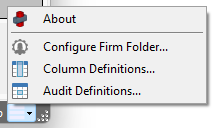
How do I access columns and audit definitions?
Access all settings via the menu in the bottom right corner:
No rows appear after pressing Fetch
Possible causes:
- No objects were selected in the Tekla model
- The selection filter excluded all objects
- The current column configuration does not contain properties available for the selected objects
- The wrong tab is showing (Components tab may be empty while Parts tab is full)
Ensure the correct tab is showing for the selected objects
Try selecting a small group of objects in Tekla and press Fetch again.
Audit results are missing
Possible causes:
- Audit definition files are missing
- The subject column required by a rule is not present in the column configuration
- One audit rule is shadowed by another audit rule
- Ensure the source location matches expectation
Check the Audit Definition list and ensure nodes are present, and not displaying any errors.
Make use of the Preview button when changing audits to see results immediately.
Unexpected audit warnings or errors
Possible causes:
- Model data does not match the expected rule patterns
- The column value used by the rule is incorrect or incomplete
- An audit subject or target points to a column that does not exist in the Column Definition
Review the audit message shown in the Info Panel to identify which rule produced the result.
Getting Help
If the issue cannot be resolved using the checks above, help may be available through the community forum.
Community Forum
Trimble subscription is required to download the extension and community forum.
When reporting a problem, it helps to include:
- the ObChecked version
- a description of the issue
- screenshots of the grid or audit message
- the relevant column configuration
- the relevant audit rule
Providing this information makes it easier to reproduce and diagnose the problem.
Additional Resources
- User Interface → Main
- Core Concepts → Subject Node
- Core Concepts → Match Node
- Core Concepts → Target Node
- Core Concepts → Condition Node
Future Topics
Additional troubleshooting topics will be added here as common questions arise.