Core Concepts
Overview · Subject · Match · Target · Condition
Condition Node
Purpose
A Condition node determines whether a Target node should execute.
Conditions allow audit rules to depend on additional criteria before a validation check is applied.
If the conditions fail, the Target is skipped and no audit result is produced.
Conditions do not generate flags themselves.
They only control whether the Target evaluation runs.
Multiple Targets for the Same Cell
Normally a column should only be targeted once within a Match branch.
However, duplicate Targets are valid if they contain different Conditions.
This allows multiple audit rules to apply to the same cell depending on context.
For example:
Target: MATERIAL
Condition: PROFILE depth = 139.7 AND thickness ≤ 5
Expected grade: 250

Target: MATERIAL
Condition: PROFILE depth = 139.7 AND thickness > 5
Expected grade: 350
In this situation, only one Target will execute depending on which condition is satisfied.
Condition Properties
Each Condition contains several properties that define how the comparison is performed.
LeftSource
Determines where the value being tested comes from.
Available sources:
Column
The value is taken directly from another column in the grid.
The column name must be specified in the Column field.
matchString
Uses a string value returned from a Regex Match node capture group.
The value is selected using MatchIndex.
matchNumber
Uses a numeric value returned from a Regex Match node capture group.
The value is selected using MatchIndex.
Regex Match Groups
When a Match node uses regex, captured groups can be passed to Conditions.
For example:
Pattern: ^CHS(\d+(\.\d+)?)\*(\d+(\.\d+)?)$
This might extract values such as:
Depth: 139.7
Thickness: 5.0
These values can then be used in Conditions using:
LeftSource: matchNumber
MatchIndex: 0
The Matches tool in the Audit Definitions editor can display the extracted match groups for selected rows.
This helps determine which MatchIndex values correspond to each captured group.
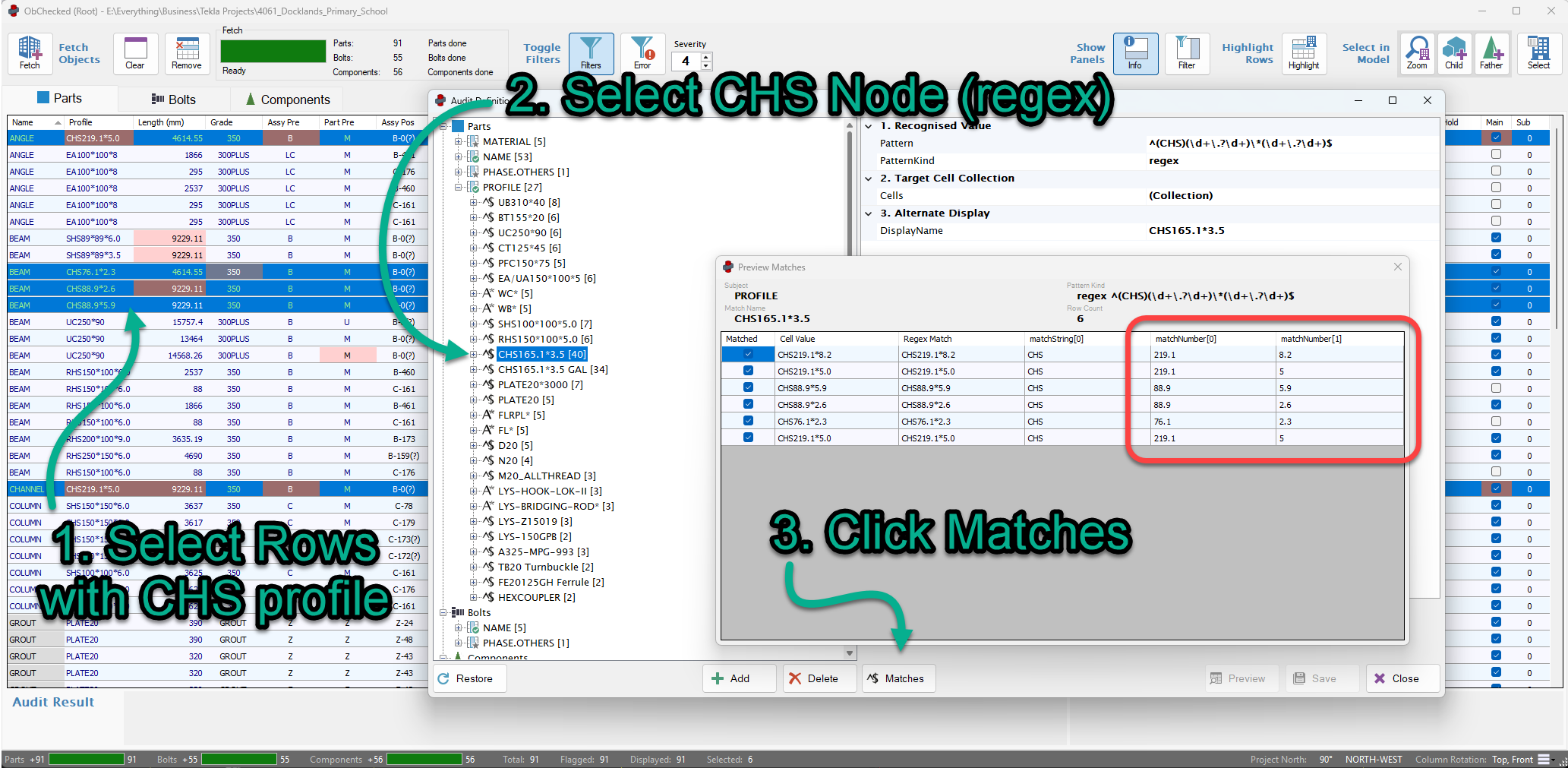
Select some rows in the main table and the corresponding match node, and the Matches tool will show matching rows.
Column
When LeftSource = Column, the Column field specifies which grid column should be evaluated.
Example:
LeftSource: Column
Column: RADIUS
Operator: ==
Value: 0
Operator
The operator defines how the comparison is performed.
The available operators depend on the datatype of the value being evaluated. They are all available, but the correct one should be specified for the data type of the condition value.
Numeric operators can only be used when the column datatype is numeric (as defined in the column definition).
String operators:
equals
notEquals
like
notLike
contains
notContains
Numeric operators:
==
!=
<
<=
>
>=
Right Comparison Values
Conditions compare the left value against one of two possible right-side values.
Value
A single numeric comparison value.
Example:
Operator: <=
Value: 5
Values
An array of comparison values.
This is typically used for string comparisons.
Example:
Operator: equals
Values: ["Q", "R"]
Wildcards (*) may be used when the operator supports pattern matching (like or notLike).
Arrays of numeric values are also supported, but operators such as < or > should not be used with numeric arrays as the results would be ambiguous.
Required Fields
Only some properties are required depending on the condition type.
When LeftSource = Column
Required:
LeftSource
Column
Operator
Value or Values
When LeftSource = matchNumber or matchString
Required:
LeftSource
MatchIndex
Operator
Value or Values
The Column field should remain empty in this case.
Example: Profile Depth and Thickness
A common use of Conditions is when a Regex Match extracts numeric values from a profile string.
Example profile:
CHS139.7*5.0
Regex groups may extract:
matchNumber[0] = 139.7
matchNumber[1] = 5.0
Conditions can then be used to control which Target rule applies.
Example:
Condition 1
LeftSource: matchNumber
MatchIndex: 0
Operator: ==
Value: 139.7

Condition 2
LeftSource: matchNumber
MatchIndex: 1
Operator: <=
Value: 5.0
This allows different audit rules to apply depending on profile dimensions.
Why Conditions Are Useful
Conditions allow audit rules to be highly specific without requiring large numbers of separate Match branches.
They allow Targets to activate only when the correct context exists.
This enables complex validation rules such as:
- material grade depending on profile size
- bolt tolerances depending on diameter
- assembly prefixes depending on phase
- checks that only apply to curved parts
Summary
Condition nodes allow Targets to run only when specific criteria are satisfied.
They can evaluate:
- values from other columns
- values extracted from regex match groups
By combining Conditions with Targets, audit rules can adapt to many different scenarios while remaining organised and maintainable.