Configuration
Overview · Firm Folder · Column Definitions · File Locations
Column Definitions
Column definitions determine which Tekla object properties appear in the ObChecked grid and how those values are interpreted during auditing.
Every value that can be evaluated by an audit rule must first exist as a column definition.
Because of this, column definitions form the foundation of the ObChecked auditing system.
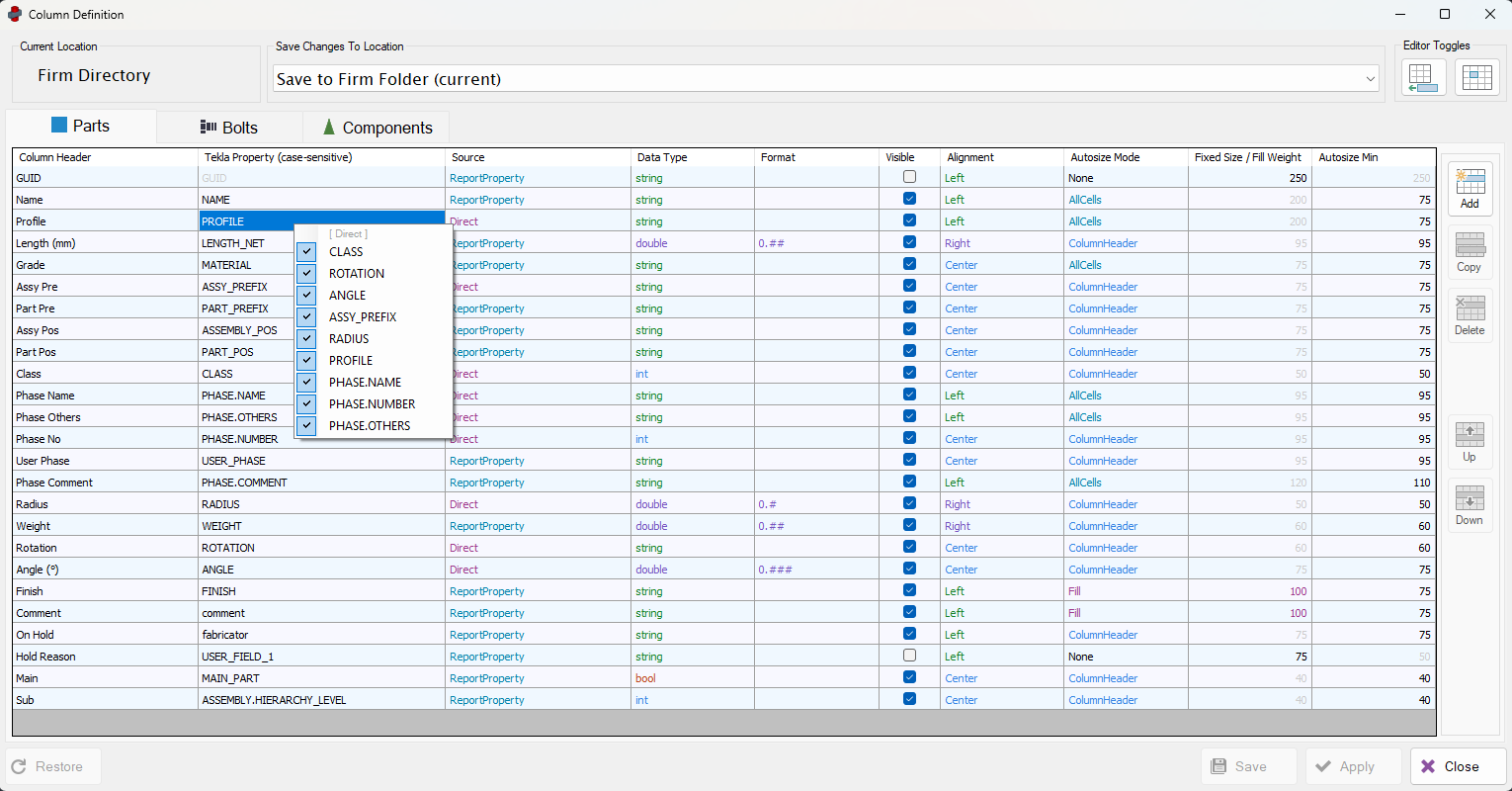
- Insert/Append and Cell/Row Editor Toggles in the top right corner.
- Row Modify options along the right-hand side.
- Direct options available from cell context menu.
Column Groups
Column definitions are separated into three groups:
- Parts
- Bolts
- Components
Each group appears as a separate tab in the Column Definition form.
These correspond directly to the object groups shown in the main ObChecked grid.
Each group can define its own set of columns depending on the information required for auditing.
Required Columns
The GUID column is required and cannot be removed.
This column stores the unique identifier of the Tekla object and is used internally by ObChecked to maintain a link between grid rows and objects in the model.
Example configuration:
Column Name: GUID
Source: Direct
Datatype: String
Visible: false
The GUID column should normally remain hidden, as it is not intended for user interaction.
Column Sources
Columns retrieve values from Tekla using different source types.
Report Properties
Most columns retrieve values using Tekla Report Properties.
Any property that can appear in a Tekla template report is usually available as a report property.
Examples used in the default configuration include:
PROFILE
MATERIAL
NAME
LENGTH_NET
These properties are commonly used by audit rules.
User Properties
User properties allow ObChecked to access custom attributes defined in Tekla.
Although not used in the default configuration, they can be added when required.
These are often used for:
- company-specific metadata
- fabrication information
- project-specific attributes
Direct Properties
Direct properties read values directly from the Tekla model object.
Examples from the default configuration include:
| Property | Description |
|---|---|
GUID |
Alternative to ReportProperty, should not be different. |
CLASS |
Not available from ReportProperty. |
ROTATION |
Not available from ReportProperty. |
ANGLE |
Not available from ReportProperty. |
ASSY_PREFIX |
ReportProperty ASSEMBLY_PREFIX returns the resolved value from its welded assembly. Direct ASSY_PREFIX returns the value from the part properties. |
RADIUS |
ReportProperty RADIUS only returns the curved beam Radius field. Direct RADIUS also calculates radius from 3 points of polybeam (if available, and if node is set to Rounding or Arc Point) and returns first non-zero result. Direct RADIUS also returns a token minimum thickness + 1 for BentPlate types (Available from Version 2.2) |
PROFILE |
ReportProperty PROFILE returns the resolved profile using fltprops.inp and may change PL to FL depending on settings. Direct PROFILE returns the value from the part properties. |
PHASE.NAME |
Returned from model object before converting to part, bolt, or component. Cached to optimise speed. |
PHASE.NUMBER |
Returned from model object before converting to part, bolt, or component. Cached to optimise speed. |
PHASE.OTHERS |
Complex algorithm to examine related objects, compare phases, and accumulate differences. Cached to optimise speed. |
In some cases, Direct properties may return different values to the ReportProperty equivalent.
Datatypes
Each column must define a datatype.
The datatype determines how the value can be interpreted and which audit operations are available.
Supported datatypes include:
| Datatype | Usage |
|---|---|
| String | text values such as profile names or materials |
| Integer | whole numbers |
| Double | numeric values with decimal precision |
| Boolean | true / false values, appears as checkbox |
Selecting the correct datatype is important.
For example:
- String columns support pattern matching and string comparisons
- Numeric columns allow numeric comparison operators
Numeric Formatting
If a column datatype is set to Double, an additional Format field becomes available.
The format determines:
- how numeric values are displayed in the grid
- the precision used when performing numeric comparisons
Example formats:
0
0.#
0.##
Numeric audits such as NumericBands and NumericCompare use this precision when evaluating values.
This ensures audit behaviour matches what the user sees in the grid.
Column Visibility
Columns can be either:
- visible
- hidden
Hidden columns can still be used by audit rules even if they are not displayed in the grid.
For example, the GUID column is hidden but required internally.
Editing Columns
Columns are edited using the Column Definition form.
Each row in the table represents a single column definition.
Columns can be modified directly by editing the cells.
Cell Selection Mode
In Cell Selection Mode, individual cells can be edited.
This mode allows:
- modifying column properties
- editing property names
- updating datatypes
- changing formatting
New rows can also be added.
A toggle allows new rows to be either:
- Inserted above the current selection
- Appended to the end of the list
Row Selection Mode
Row Selection Mode enables operations on entire rows.
In this mode:
- individual cell editing is disabled
- rows can be selected as a whole
Row operations include:
- moving rows
- copying rows
- deleting rows
This mode is useful for reorganising column order.
Applying Changes
Changes must be saved before they can be applied.
Column definitions affect the schema used to retrieve properties from the model.
For this reason, the main grid must be empty before columns can be updated.
Once changes have been applied:
- Objects can be fetched again
- The grid will display properties using the updated column configuration
Best Practices
When defining columns:
- ensure datatypes match the expected data
- use numeric datatypes for numeric comparisons
- avoid duplicate columns referencing the same property
- hide internal columns such as GUID
- keep column sets consistent across shared environments
Well-defined columns make audit rules significantly easier to create and maintain.
Related Configuration
See also: